Run Your First Model
Watch this step (11:35) in the overview video.
Your Scenario is configured. This step turns it into a mesh, shows you what the Run will cost before it starts, and sends it to cloud compute.
Build first
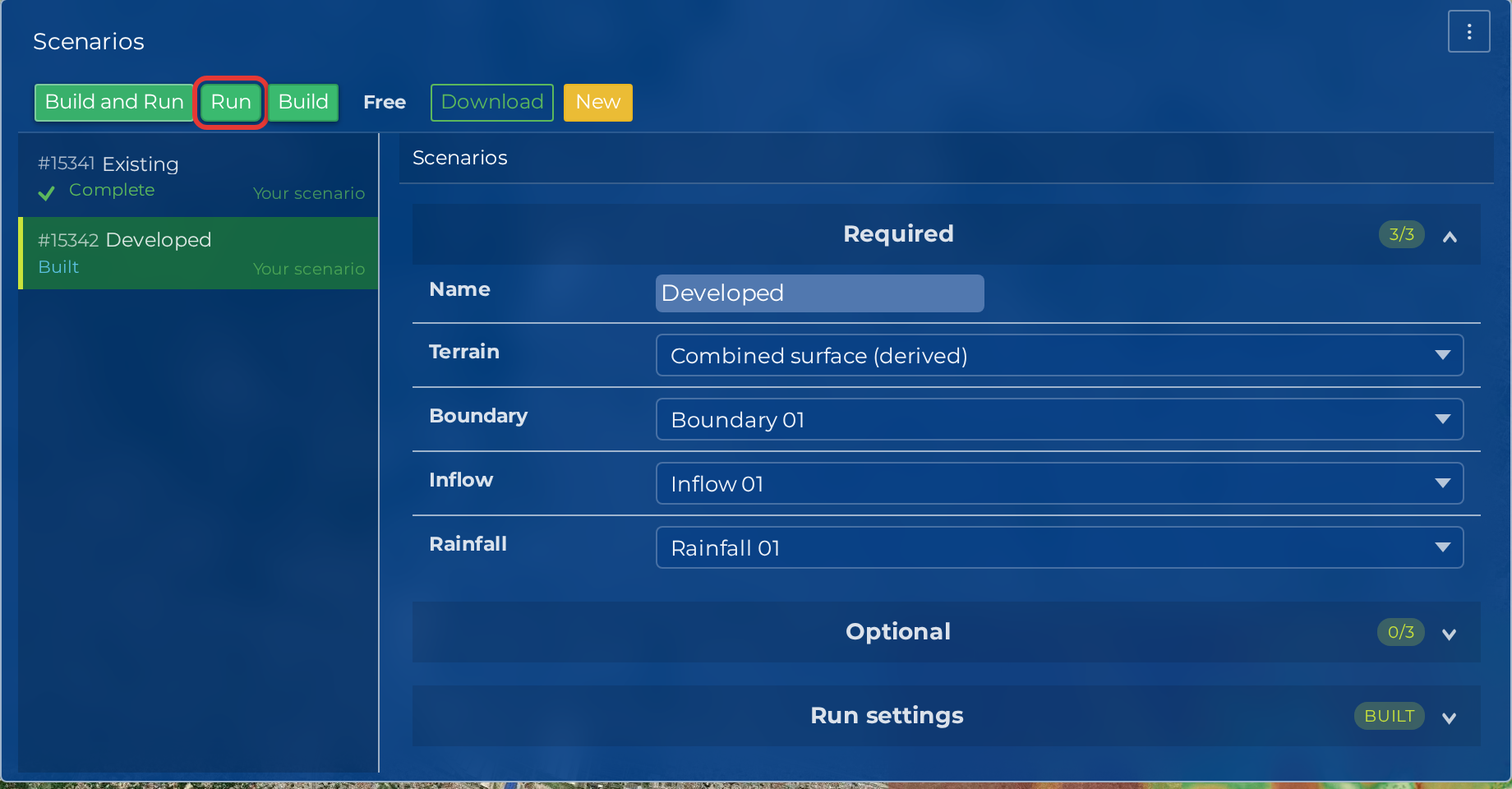
Click Build. Hydrata generates the triangular mesh and assembles your inputs into a scenario package. The status moves from Created through Building... to Built.
Building is free. It creates the mesh and the package and dispatches nothing.
Do this before running, even though a combined Build and Run button exists, because building is what makes the price knowable.
Read the price before you run
Once the Scenario is Built, the run strip shows what the Run will cost. For a small model like this tutorial it reads Free.
That figure is a quote, and it is exact. Hydrata prices a Run from the mesh it actually built, the triangle count and the simulated duration, so the number on screen is the number you will be charged, to the cent. There is no range, no band and no true-up afterwards. Hover a free quote and it says the Run is free and nothing will be charged. Hover a priced one and Hydrata tells you two things:
- what you will be charged for this Run, and
- that you get full credit back if it produces no results
The Run's charge is credited back to your compute balance automatically if the Run ends without results, whether it failed or you cancelled it. A build that fails is never charged at all, because the charge happens when the Run is dispatched.
Free Runs are capped per day
A quote at or below the free threshold costs nothing, which is the case here. Free Runs are limited per day for your account, and if today's are used the run strip says so before you click, and the Run is refused until tomorrow rather than charged. Your account's Billing tab shows the threshold, the cap and how many you have used today. See Compute balance for the whole picture, and hydrata.com/plans for the figures.
Build and Run is a shortcut, not a different price
Build and Run dispatches automatically as soon as the build finishes, so you never pause on the quote. It costs exactly the same. Use it once you know what your models cost; for this tutorial, use the two clicks and read the price.
Then run
When the status shows Built, click Run.
Verify your email address first
A new account can build models but cannot run one until its email address is verified. If you have not clicked the link in the confirmation email Hydrata sent when you signed up, Run opens a Verify your email to run this model dialog instead of dispatching anything; it has a Resend verification email button. Click the link in that email, then click Run again.
Hydrata submits the Run to its cloud GPU compute. Nothing simulates on your own machine, and there is no hardware for you to pick.
If your balance does not cover a priced Run, Hydrata refuses it before dispatching anything, and the price on the run strip turns into a button that opens your Billing tab. Nothing is charged for a refused Run.
Watch the status
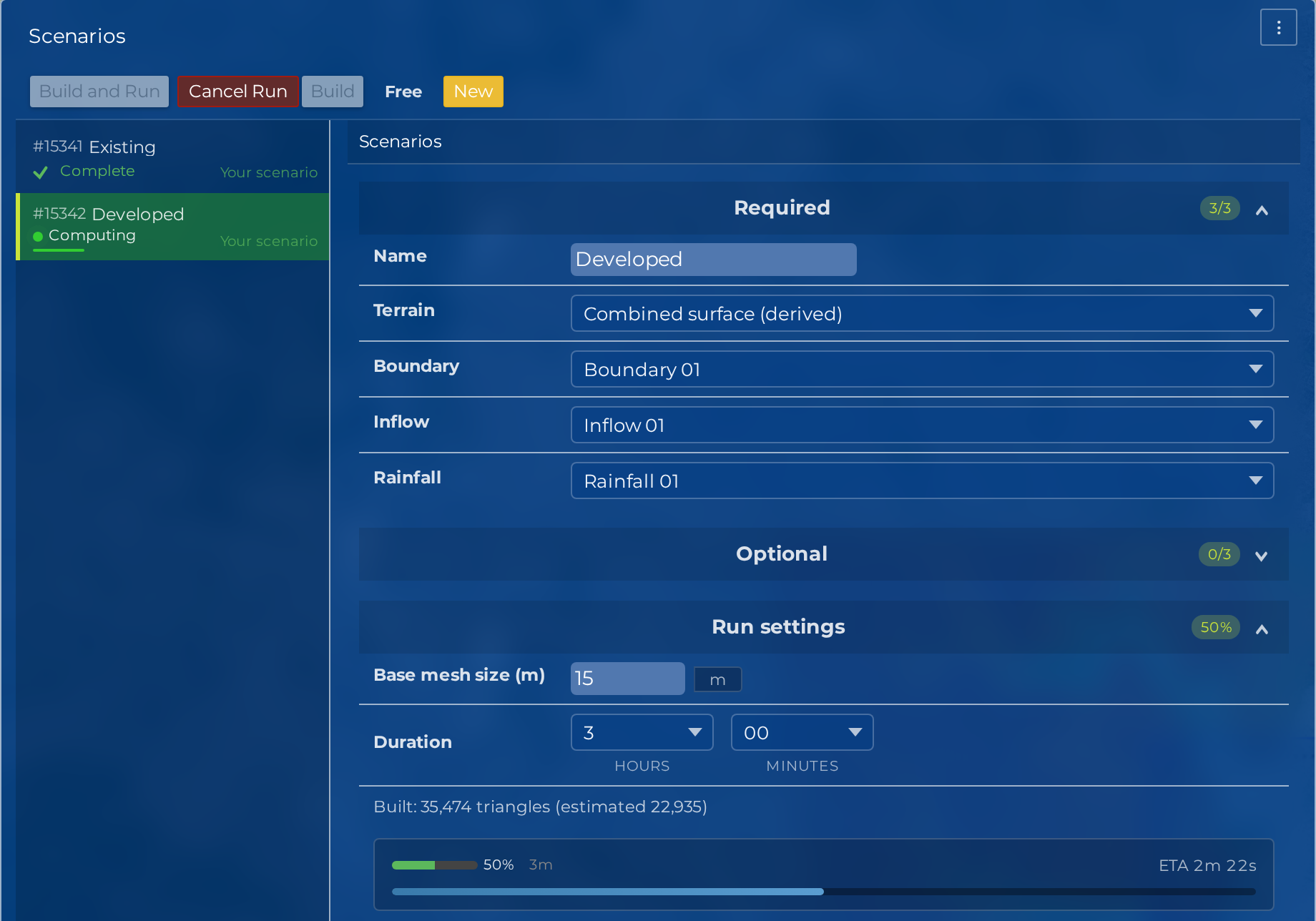
The status updates automatically as the Run progresses:
| Status | What is happening |
|---|---|
| Created | The Scenario exists but has not been built |
| Building... | The mesh is being generated and the scenario package assembled |
| Built | The scenario package is ready to run, and its quote is on screen |
| Queued | The Run is waiting for cloud compute |
| Computing | ANUGA is simulating. A progress bar shows percent complete and an estimated time remaining |
| Processing results... | Result rasters are being generated and published to the map |
| Complete | Results are ready to view |
How long it takes
At the tutorial settings the mesh comes out between about 300,000 triangles for a ring around the floodplain and 750,000 for the whole square, and the simulation itself takes a few minutes, with mesh building and result publishing adding a little on either side. Run time scales with the triangle count multiplied by the simulated duration, so halving the base mesh size roughly quadruples it: a detailed catchment model with a million or more triangles typically takes somewhere between 20 minutes and a few hours.
Because the quote is computed from the same two numbers, what makes a Run slow is also what makes it cost more.
Tip
You don't need to keep the page open. The Run continues on cloud compute, and the status catches up whenever you return to the project.
Warning
If the status shows Error, a Run failed notice at the top of the panel names the cause and offers Show run log; the full log also sits at the bottom of the Run settings section. Click Retry: Hydrata builds the Scenario again and quotes the new Run, and when the status shows Built you click Run once more. The failed Run's charge comes back to your balance; the retry is a new Run and is quoted on its own.
Next steps
When the status reaches Complete, your result layers are already on the map. Next: view your results.