Troubleshooting
When something goes wrong, Hydrata says so in three places. Check them in order, then find your symptom below. If none of it helps, the Get help section at the end tells you what to send us.
Where to look first
- The scenario status. Every Scenario shows its lifecycle status: Created, Building..., Built, Queued, Computing (with a progress percentage and an ETA), Processing results..., Complete, Error, or Cancelled. Anything that fails ends at Error.
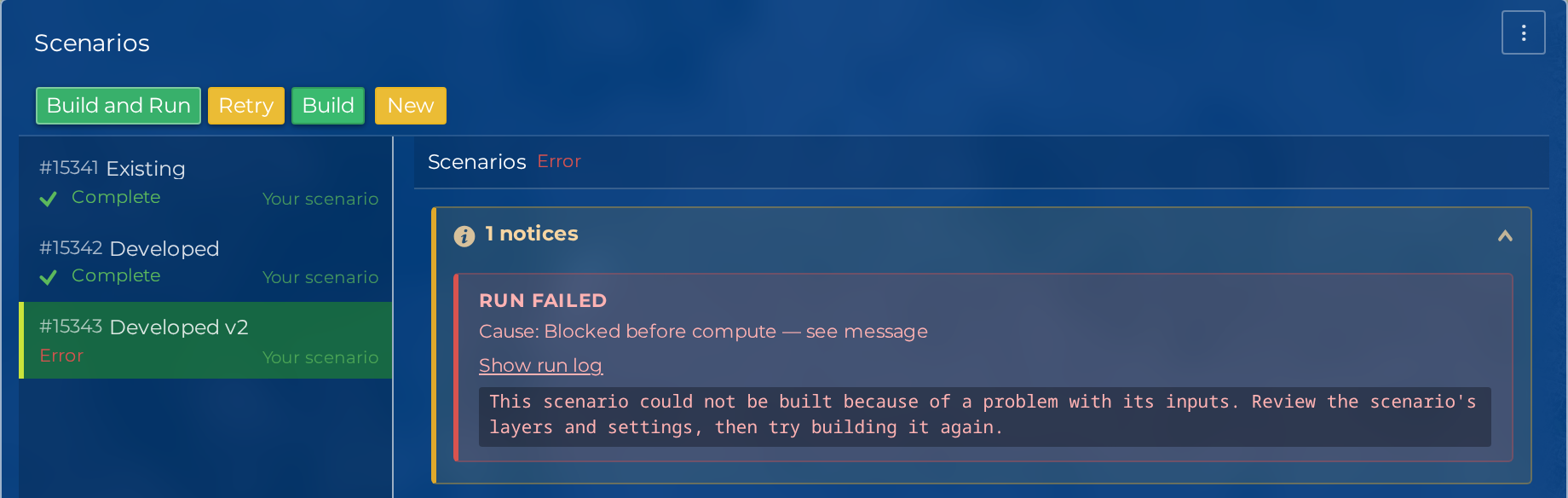
- The "Run failed" strip. When a Scenario's latest Run has failed, a red Run failed strip appears in the scenario panel. It carries three things: a plain-English sentence saying what went wrong and what to do about it, a Cause line naming the class of failure, and Show run log, which expands the tail of the log in place. Hovering the Error status in the scenario list shows the same sentence.
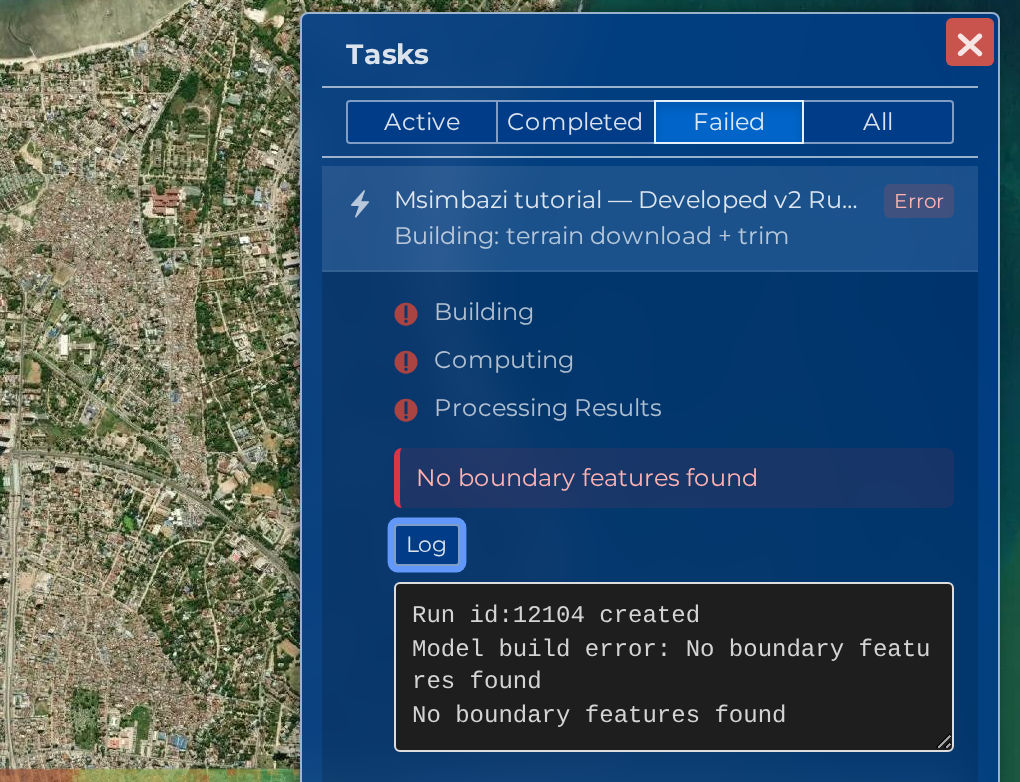
- The Tasks panel. Click Tasks in the right-hand toolbar to open the task monitor. It lists every background task: terrain uploads, scenario builds, and runs. Filter by Active, Completed, Failed or All, click a task to expand it, and read its Log line by line. An expanded compute task also shows the Hardware it ran on: the instance type, the GPU, the CPU model and the availability zone. Tasks that do not run on cloud compute show no hardware section at all, which is normal rather than a gap.
The message is written for you, not for us
Failure messages are composed for the person reading them, so there is no raw traceback or exception name to decode. The operator-facing detail is still captured behind the scenes: quote the sentence you can see and we can find the rest.
What the failure message is telling you
The Cause line is one of a small set of classes, and the sentence beside it names the next action. The common ones, and what to do:
| What you read | What happened | What to do |
|---|---|---|
| Out of memory, while computing | The simulation needed more memory than the compute job had | Coarsen the base mesh size, or reduce the model area, then run again |
| The compute job failed to start | The job never got as far as running your model. Usually transient | Run it again. If it keeps happening, ask for help |
| The compute job stopped responding | A watchdog found a job that had stopped sending heartbeats and marked the Run failed | Run it again. If it keeps happening, ask for help |
| Blocked before compute | A guard stopped the build before anything was dispatched, so nothing was charged. The sentence names the specific problem | Fix the input it names, then build again |
| No feature tagged as the External location | The boundary layer has no feature marking the model's outer edge | Open the boundary layer, tag the outer feature as External, rebuild |
| No usable boundary data | The boundary layer has no features covering the model area | Draw or select a boundary that covers the domain, rebuild |
| A layer is missing from the datastore | An input layer the Scenario points at has been deleted underneath it. The message names the layer | Re-create or re-attach that input, then rebuild |
| A problem with the inputs | A build guard fired that has no more specific sentence | Review the Scenario's layers and settings, then build again |
| This run failed unexpectedly | The failure did not match anything known | Try again, and if it persists send us the Scenario name and roughly when it ran |
A build failure is never charged, because the charge happens when a Run is dispatched and a blocked build never gets that far. A Run that failed after dispatch is credited back automatically. See Compute balance.
Scenario will not build
A missing field. Before a build starts, Hydrata checks the Scenario has a name, a terrain, a boundary, an inflow or rainfall, a resolution greater than zero, and a duration greater than zero. The validation message names the first missing field; fill it in and build again.
The build starts, then the status flips to Error. Read the Run failed strip using the table above. The two build-time causes worth calling out separately:
- No-data cells inside the model boundary. Your elevation raster has gaps
inside the boundary. ANUGA cannot assign a ground level there, so the build
stops before spending anything. Either fill the gaps in the raster (for example
with
gdal_fillnodata) and re-upload, or redraw the boundary so it stays inside the area your elevation actually covers. - An inflow drawn on top of a raised structure. Water introduced inside a structure that has been raised out of the terrain has nowhere to go. Move the inflow, or move the structure.
Mesh regions drawn but not attached
If you drew a mesh region and did not attach it to the Scenario, the build asks before it proceeds: the mesh will be uniform at the base size and the region will be ignored. Attach first is usually what you want.
After a combined Build and Run, if the built mesh comes out far larger than the pre-build estimate, Hydrata stops and asks before dispatching the Run rather than spending your balance on a surprise. The Scenario stays built, so nothing is lost if you cancel and change the resolution instead.
The mesh is too large to build
Symptom: the build is refused immediately, with a message saying the mesh would be roughly N triangles, above a limit of C triangles, and to coarsen the resolution or reduce the extent.
This refusal happens before anything is built, queued or charged. The limit is the largest mesh the compute target can hold in memory, so a mesh above it could not have run anywhere: refusing early is the only honest answer.
Base mesh size is a length, so halving it roughly quadruples the triangle count. A model at a metre or two across a whole city catchment is tens of millions of triangles. What to do instead:
- Coarsen the base mesh size, and confirm the model behaves before refining.
- Shrink the extent to the area you actually need results for.
- Refine selectively with Mesh Regions, so only your area of interest carries fine triangles.
The Scenario's estimate breakdown tells you where the triangles are going, and says so explicitly when your mesh regions, breaklines or structure holes are driving the count rather than the base size. After a successful build the panel shows the built triangle count beside the estimate.
The same ceiling applies before a Run
A built mesh that turns out to be over the ceiling is refused at dispatch too, for the same reason. Nothing is charged for a refusal.
A coarse terrain is hiding your survey (terrain resolution order)
Symptom: you merged a fine survey with a coarser regional DEM, and the merged terrain looks like the coarse one. Or the merge is refused with a message naming two terrains and their resolutions.
In a merge, the terrain higher in the stack wins everywhere it has data, so a coarse DEM sitting above a fine survey replaces the survey inside its footprint. Hydrata refuses that arrangement rather than quietly throwing your lidar away, and the message names the offending pair with each one's resolution in metres.
- Usually: move the coarse terrain below the fine one and derive again.
- Occasionally you mean it: a rasterised design surface belongs on top of a survey. That case is one deliberate acknowledgement away, not a hard block.
See Combine Two Terrains for the whole merge flow.
The heights are wrong everywhere (vertical datum)
Symptom: the model floods everything, or nothing, or the water surface sits tens of metres above or below the ground you expect.
Elevations can be measured from two different surfaces: an ellipsoid (what a GPS or many global products report) or mean sea level (EGM2008). The two differ by tens of metres in many parts of the world, and nothing in a GeoTIFF is obliged to say which one it used. So:
- At upload, Hydrata asks which vertical datum the heights are in, and can convert them to EGM2008 for you.
- After upload, it checks the answer against global terrain for the same area. If the tag disagrees with the measurement, the terrain carries a datum advisory badge showing what the tag says, what the check measured, and what was expected for that datum. You then choose: Convert to EGM2008, Keep as-is, or It's already correct.
Mixing datums inside one project is the version of this that is hardest to spot: one terrain in ellipsoidal heights and one in EGM2008 gives a merged surface with a cliff at the join. Check the badge on every terrain before you build.
Elevation upload fails or never finishes
Symptom: you upload a terrain file, the layer sits at Creating..., and the task in the Tasks panel eventually shows Failed.
Terrain processing normally takes a few minutes (reproject, build the hillshade,
apply the style). If the task fails, expand it in the Tasks panel: the last log
line starting with ERROR: names the underlying cause.
Common causes:
| Cause | Fix |
|---|---|
| File is not a GeoTIFF | Only .tif / .tiff files are accepted. Export your raster as GeoTIFF from your GIS and re-upload. |
| No coordinate system in the file | Hydrata reads the CRS embedded in the GeoTIFF to choose the right projection. A file with no CRS tag cannot be reprojected. Assign the correct CRS in your GIS, then re-upload. |
| Truncated or corrupt file | Large uploads that are interrupted produce unreadable files. Re-export and re-upload. |
Downloading global terrain instead?
If you used the globe icon to fetch Copernicus GLO-30 terrain and see a Terrain download failed message, the detail text explains why. The most common cause is drawing too large a box: the area cap is 40,000 km2 (about 200 by 200 km), and no side may span more than five degrees. Re-select a smaller area.
Elevation renders in the wrong place or looks wrong
Symptom: the terrain uploads successfully but appears in the wrong location on the map, or the elevation layer renders as a single flat colour.
Wrong location. The CRS tag inside the GeoTIFF does not match the data. Hydrata trusts the embedded CRS when reprojecting, so a mislabeled file lands wherever the wrong CRS says it is. In your GIS, assign the CRS the data was actually captured in (not just any CRS), re-export, and re-upload.
Flat or strange colours. Hydrata treats the value -9999 as "no data". If
your raster marks empty cells with a different sentinel value (for example
-32768 or 3.4e38), those cells are treated as real ground elevations: the
colour ramp stretches across them and the genuine terrain is crushed into one
colour. Worse, those cells become enormous pits or walls in the model. Fix the
file before re-uploading:
Use Raster > Conversion > Translate, and set Assign a specified nodata value to output bands to -9999. If the empty cells carry a different sentinel value, first reclassify them to -9999 with the raster calculator.
See Elevation for the full input requirements.
Run stuck in Queued or Computing
Symptom: the status shows Queued or Computing and nothing seems to happen.
Work through these checks:
- Is it actually progressing? While computing, the status shows a progress percentage and an ETA. A rising percentage on a long simulation is healthy: fine meshes and long durations genuinely take hours.
- Has live updating paused? If you leave the page open for a long time, a Live updates paused banner appears and Hydrata stops refreshing. Click Resume polling, or refresh the page. The Run itself was never affected, only the display.
- What does the Tasks panel say? A compute task reports Pending, Provisioning, Running, Stalled or Unresponsive, which separates "waiting for a machine" from "running" from "we have stopped hearing from it". A Low CPU advisory means heartbeats are still arriving but the job is doing almost no work; it is an advisory, not a verdict.
- Has the Run silently died? A background watchdog reviews Runs that have been active for more than an hour. If the compute job behind a Run has died, the watchdog flips the Run to Error with a message saying the job stopped responding. So a Run that stays stuck with zero progress resolves itself to Error eventually, and you can retry.
- Want it gone now? Click Cancel Run. Cancelling is valid at any phase up to Complete, including mid-build, and the Tasks panel's own Cancel does the same thing. A Run that has already reached Complete or Cancelled cannot be cancelled again.
Note
You cannot archive a Scenario while one of its Runs is in progress. Cancel the Run first.
Run failed
Symptom: the status shows Error and the Run failed strip shows a message.
Where to find the details:
- The message is in the Run failed strip, and in the tooltip when you hover the Error status in the scenario list.
- The cause class is the line below it.
- The log is behind Show run log in the strip, and in full in the Tasks panel: find the run's task, expand it, and read the Log. It records every phase of the Run, from creation through mesh statistics to the failure itself.
To run again, click Retry. It resets the failed Run so the Scenario can be run afresh, and confirms when the reset succeeds. Fix the underlying cause first, otherwise the retry fails the same way. A retry is a new Run: it is quoted and charged on its own, and the failed Run's credit back is a separate entry. See Compute balance.
Reproduce it locally
Every built Scenario produces a downloadable scenario package. If a Run keeps failing inside the solver, download the package and run ANUGA on your own machine to debug interactively. See Run ANUGA yourself.
Results are not where I expect them
Symptom: the Run says Complete, but the map looks exactly as it did before.
That is by design. Nothing result-shaped paints when a map opens, and result layers arrive hidden, so a project with many Runs opens showing your inputs rather than a stack of floods. You choose what to look at:
- Open the Results menu and click your Scenario. That loads the Run in the player and starts it. See Playing Back a Run.
- Or switch on Max in the player for the peak reached anywhere during the Run. The maximum rasters themselves are published as datasets in your catalogue, not drawn on the project map.
Other reasons results can seem to be missing:
- The Run is still Processing results... The layers and the playback store are written in that phase. Wait for Complete.
- The Scenario row says playback is unavailable. Playback exists only for Runs that finished after the feature was introduced. Older Runs still have their maximum-value layers and their downloads.
- You are looking at an older Run. A banner names the Run on screen when a newer one has failed or is still building.
- A colleague cannot see what you can. Check their role and the project's visibility in the Sharing tab. See Sharing your project.
Cannot delete an input
Symptom: deleting a terrain, boundary, inflow or other input is refused with a message saying it is referenced by one or more Scenarios, and to detach it first.
This refusal is deliberate and it protects you: deleting an input a Scenario still points at would destroy the underlying data while the Scenario kept referring to it. The message names the blocking Scenarios. Detach the input from each one (or delete those Scenarios), then delete the input.
Playback or the map is slow
- Close the player when you are done with a Run. The close control on the bar unloads the run and releases the memory it was holding. Leaving the map does the same.
- If playback says it is unavailable on this device, the run's mesh is larger than the memory this browser can be expected to hold. The maximum-depth layer is shown instead. Closing other tabs and reopening the run sometimes clears it.
- Turn off layers you are not using. Every visible layer is fetched and drawn.
- Zoom in to your area of interest. Wide views of fine result rasters request far more data than a focused view.
- Mind the model size. Finer meshes mean larger outputs and heavier layers. Use Mesh Regions rather than a globally fine resolution.
- Browser basics. Use a current version of Chrome, Firefox, or Edge with hardware acceleration enabled, and close other heavy tabs. Rendering is GPU-assisted, so a browser without hardware acceleration will struggle.
Get help
Use the support form at hydrata.com/support. It works whether or not you are signed in, which matters when the problem is that you cannot sign in. Pick what you need (help using Hydrata, something is broken, feedback or a feature request, or billing), write your message, and give an email address for the reply. You get a request number back on screen: quote it if you write to us again. If you are signed in with a verified email address, a copy of the request is emailed to you as well.
Attach a screenshot if you can: signed-in users can add up to three images to a request. A picture of the Run failed strip or the Tasks panel log is usually worth more than a description of it.
Whether you attach anything or not, include:
- the project name and the Scenario name
- the status you see (for example Error, or stuck at Computing 40%)
- the failure message from the Run failed strip, and the Cause line under it
- roughly when the Run started
- the project link, if the project is one you can share (see Sharing your project)
Those details let us trace your exact Run. For questions about the ANUGA solver itself, the engine is open source: see Why ANUGA for links to the ANUGA community project.