View Your Results
Watch this step (12:48) in the overview video.
When a Run reaches Complete, its results are published to your project. This page shows you how to get to them and how to read them at a glance.
Open the results
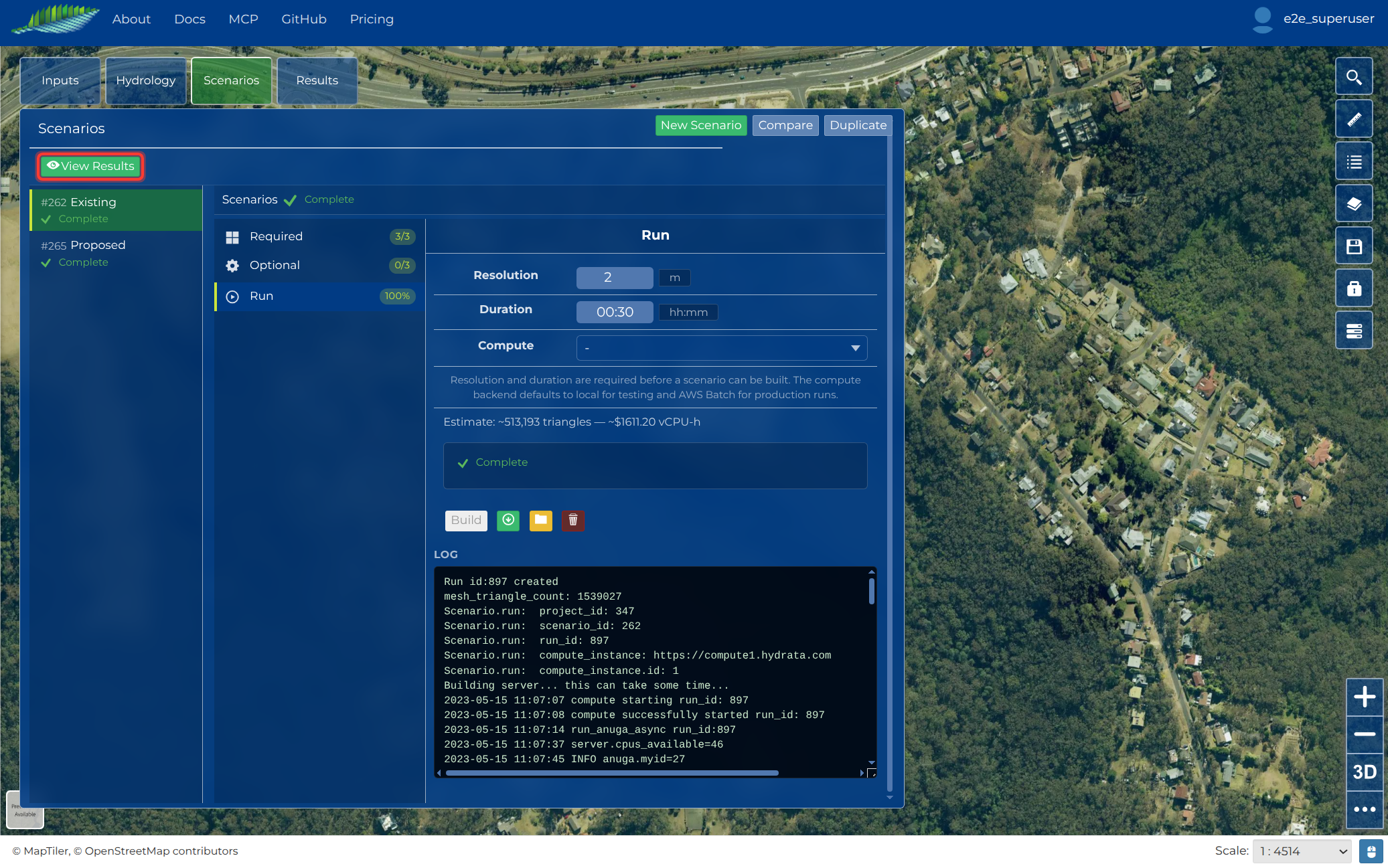
The quickest route is the View Results button that appears at the top of the Scenarios panel when a Run completes. Clicking it closes the panel and opens the Results menu with your Run loaded in the player.
You can also click Results in the left toolbar at any time.
Watch the run
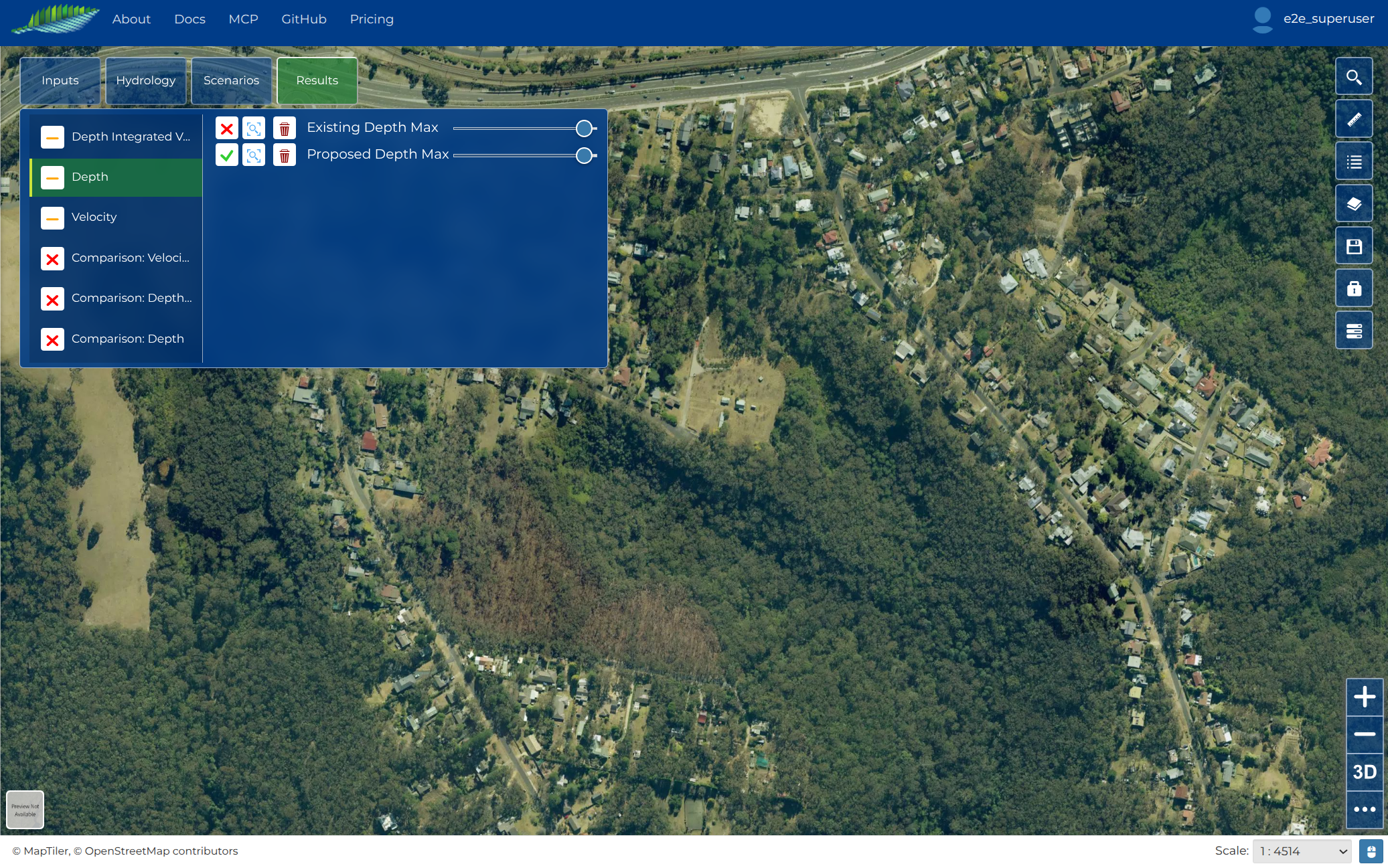
The Results menu lists one row per Scenario with a completed Run. Click yours: the mesh downloads, the first frames buffer, and the flood plays on its own from the start of the simulation.
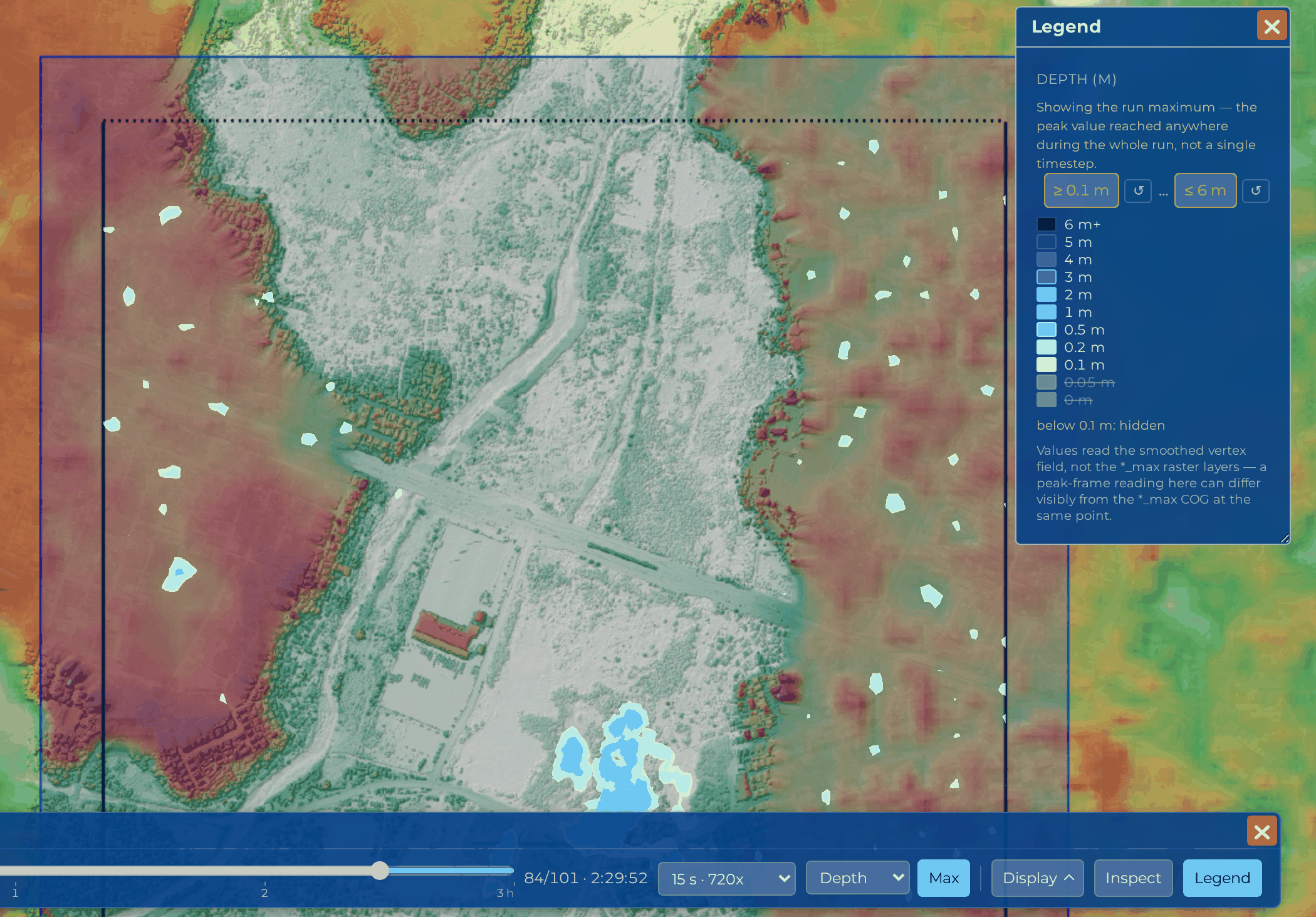
Try these while it plays:
- Pause and drag the timeline back to the moment the water arrives
- Change Result quantity from Depth to Velocity, then to Hazard (the dropdown abbreviates the longer names; the legend and the Inspect readout spell them out)
- Switch on Inspect and click a spot to read its values at that instant
- Switch on Max to see the peak reached anywhere during the whole Run, which is the same thing the maximum-value layers show
Playback has a page of its own: Playing Back a Run.
The maximum-value layers
Each completed Run also publishes three rasters as datasets in your catalogue, named after the Scenario (for example Existing Depth Max):
| Layer | Shows | Units |
|---|---|---|
| Depth Max | Maximum water depth reached at each point | m |
| Velocity Max | Maximum flow speed at each point | m/s |
| Momentum Max | Maximum depth-integrated velocity (depth multiplied by velocity), a common flood-hazard indicator | m²/s |
They are not drawn on the project map, so opening a project never drops a flood over your inputs, and the map has no layer list to switch them on from. The peak view inside the app is the player's Max control above. To look at a raster on its own, open its dataset page from the catalogue (search the Scenario's name), or use the download button on the completed Scenario and take the GeoTIFFs into your own GIS.
Note
The maximum stage (water surface elevation) raster is included in the downloadable outputs but is not published as a map layer. See the outputs table for the full list, and use the download button on a completed Scenario to take the GeoTIFFs into your own GIS software.
A first look
Start with Depth:
- Depth highlights where water ponds: depressions, channels, and behind obstructions
- Velocity picks out the defined flow paths through the catchment
- Momentum combines the two, showing where the bulk of the water actually moves
Tip
A quick sanity check for any model: water should appear where you applied rainfall, follow the terrain downhill, and leave through the transmissive edge of your domain. Deep water piling up against the domain edge usually means a reflective boundary is blocking the outflow (revisit Define Boundaries).
Next steps
You have now completed the full loop: project, inputs, Scenario, Run, results, playback.
- Playing Back a Run covers the player, its controls and what a visitor to a public project sees
- Viewing Results covers the maximum-value layers, the cross-section tool and how to compare two Scenarios
- Sharing your project covers sending this model to someone who is not a member
- Create a second Scenario with different inputs (a proposed building, a bigger storm) and run it: see Selecting Inputs for ideas on comparing Scenarios