Sharing your project
Every Hydrata project has one visibility setting and one list of members. Together they answer two different questions: who can open the project at all, and what each person is allowed to do once inside. A third piece, the project introduction, is what someone who is not a member meets first.
This page covers the mechanism. The price of the private-models subscription is on hydrata.com/plans, which is the only place any figure lives.
Where sharing lives
Open the Account button at the top of the right-hand toolbar (the person icon) and select the Sharing tab. It holds the visibility choice, the member list, pending invitations and the project link. Only the project's owner and its managers get the sharing half; the Billing tab beside it is always your own account, whoever owns the project you are looking at.
When a project is Private or Organization, a small padlock badge sits over that button, so the state of the project you are in is visible without opening anything. A Public project shows no padlock.
Visibility: who can open the project
| Setting | Who can open it |
|---|---|
| Public | Anyone with the link can view. Not listed in any public directory: a project is reachable by its link, never by browsing or by search inside Hydrata |
| Private | Members only |
| Organization | Members only, which today is exactly what Private grants. It is kept as a separate setting for a future grant to a named organisation, and it claims nothing more than Private until that lands |
A new project starts Public, so decide this before you put anything sensitive in one. The exception is a project an AI assistant creates: it also starts unpublished, and nobody but its owner and members can open it until a person publishes it.
Moving a project into Private or Organization needs the Private models subscription, and only the owner or a manager can do it. Without the subscription the change is refused with an upgrade prompt rather than half applied. See hydrata.com/plans for what it costs, and Compute balance for why privacy and compute are billed separately: a Run costs the same either way.
A private project does not admit it exists
Ask for a private project you hold no role on and the answer is exactly the answer you get for a project id that was never allocated. Nobody can use the difference to find out what you are working on.
Publish
A project an AI assistant creates starts unpublished, whatever its visibility says. Only you and the project's members can open it, and its layers are not served to anonymous visitors. A project you create yourself in the browser is never in this state.
In the Sharing tab, an unpublished project shows a notice at the top of the Visibility section:
Not published. An agent created this project, so only you and its members can see it. Publish it to share it with anyone with the link.
The last words follow the visibility setting: "anyone with the link" for a Public project, "everyone its visibility below allows" otherwise. For a Private or Organization project, publishing changes nothing a non-member can see, because those settings already keep non-members out.
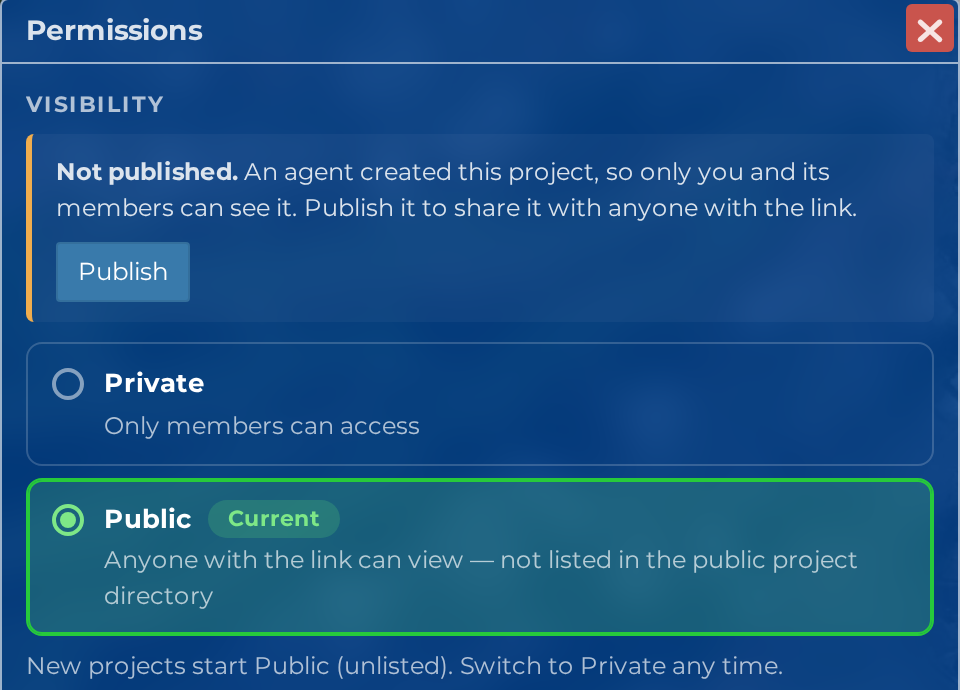
Select Publish, then confirm "Publish this project?" with Publish again. From then on the project is as visible as its visibility setting says. Publish does not change the visibility, and it changes nothing about billing.
- Only the project's Owner or a Manager can publish, and only in the browser. An AI assistant cannot publish, whatever access level its key or connection has.
- Publishing twice does nothing the second time.
- Publishing is recorded in the project's agent activity.
Members and roles
Add people to a project and each one holds exactly one role:
| Role | What it allows |
|---|---|
| Viewer | Open the project, look at the inputs, play back completed Runs, draw cross-sections. No editing of anything |
| Contributor | Everything a Viewer can do, plus create Scenarios, edit their own, and run Scenarios an Editor has built |
| Editor | Everything a Contributor can do, plus build and retry Scenarios, review inputs an agent wrote, and edit the project's inputs: terrain, boundaries, inflows, rainfall, friction, structures and mesh regions |
| Manager | Everything an Editor can do, plus manage members and invitations, change visibility, publish a project an agent created, edit the project introduction, and delete the project |
| Owner | The person who created the project. Exactly one, and not a role you assign: ownership is transferred, and the previous owner becomes a Manager |
Every member, whatever the role, can see the project's agent activity.
Your own row in the member list is marked, and a manager can change a member's role or remove them from the same table. Removing someone takes effect at once on the server: their next request is refused, and the project link gets them nothing unless the project is public. A page they already had open may keep showing controls until it reloads, but those controls no longer work.
Roles are per project
A role gives no access to any other project, and being a member of one project in an organisation grants nothing in the others.
Inviting someone by email
In the Sharing tab, enter an email address, pick the role, and send. Two things can happen, and Hydrata treats them the same way on purpose:
- the address already has a Hydrata account, and it becomes a member straight away;
- the address does not, and an invitation is emailed. It stays in the pending list until they create an account and accept.
You are not told which of the two happened, because that would turn the invite box into a way of asking whether somebody has an account here. Pending invitations can be resent or revoked from the same list.
The project link
The Sharing tab has the project's link and a Copy button. It is the full address of the project's map, so it can be pasted straight into an email, a ticket or a chat message and clicked.
Two things to know about it:
- It is not a secret token, and not a bypass. Anyone who opens it still gets only what the project's visibility allows: on a private project a non-member gets nothing, link or no link. Copy beside the control says so.
- A project with no map yet has no link. Create the project's map (it is created with the project) before expecting one.
What someone who is not a member sees
An unpublished project shows a non-member nothing at all, even when its visibility is Public. Everything below applies once it is published.
A non-member is anyone holding no role on the project: an anonymous visitor who followed a link, or a signed-in Hydrata user who is not on the member list. On a Public project they get a deliberately narrower project than a member does.
They do get:
- the map, its base maps, and the project's inputs as read-only layers
- the Results menu, the player, its legend and Inspect, for every Run with a playback store (see Playing Back a Run)
- the Cross-section tool
- the project introduction, described below
They do not get:
- Build or Run, or anything else that spends compute
- the Run's price, the download links, the run log, or the raw failure text of a failed Run
- the names of the people who built the model, or when a Scenario was archived and by whom
- the member list, the visibility control, or any billing surface
The public Msimbazi River Demo project is the worked example of all of this: hydrata.com/catalogue/#/map/6755. Open it in a private browser window to see a project exactly as a stranger does.
Opening a shared project: the project introduction
The first thing a non-member meets is the project introduction: a dialog carrying the project's name, what the owner wrote about it, and Hydrata's own platform disclaimer. It is how a model reaches somebody with its assumptions and limitations attached, rather than as a picture of a flood with no framing.
It holds four things:
| Block | Who writes it |
|---|---|
| Short summary and Full description | The owner or a manager |
| Limitations to note | The owner or a manager. This is the place to say what the model is not suitable for |
| Platform disclaimer | Hydrata. Read-only, and it cannot be edited or removed from a project |
| Project details | Derived automatically: area covered, simulations run, coordinate system, created, last updated |
How it behaves:
- Members never get it automatically. It is aimed at the person arriving from a link. Anyone can open it any time with the About this project button (the information icon in the right-hand toolbar), which appears when a project has an introduction to show.
- There are two ways out: Accept, or the cross in its header. It does not close on a stray click outside it, so it cannot be dismissed by accident.
- Editing it re-asks everyone. Owners and managers edit it in place. Saving a change publishes a new version, and everyone who had accepted the old one, including people you have already sent the link to, is asked to accept again. The editor warns you before you save.
- Acceptance is per person and per version for a signed-in viewer. For an anonymous visitor it is only a note in that one browser so they are not asked twice, and it is not a record that anybody agreed to anything.
- It comes last on arrival. Signing in resolves first, then any billing prompt, then the introduction, so two dialogs never race each other.
Sending a model to a client
A short recipe for the common case:
- Check the Run you want them to look at is Complete and plays back.
- Fill in the introduction: a short summary, and the limitations you want read alongside the results. This is the part most often skipped and most often needed.
- Decide visibility. Public means anyone with the link can view it. If that is not acceptable, keep it Private and invite them as a Viewer instead, which needs an account at their end.
- If an AI assistant created the project, publish it first. Until then the link shows a non-member nothing.
- Copy the project link from the Sharing tab and send it.
- Tell them what to click: Results, then their Scenario. It plays on its own.
Related pages
- Playing Back a Run for what a visitor can do with a finished Run
- Compute balance for why the privacy subscription and compute charges are separate
- hydrata.com/plans for the current figures
- Troubleshooting if a colleague cannot see what you can