Connect an AI assistant
This page shows how to let an AI assistant work in your Hydrata account, choose what it may do, and take that permission away again. You need a Hydrata account on hydrata.com.
There are two ways in. Use one-click connect for assistants with a connector setting, such as claude.ai and ChatGPT. Use an agent key for Claude Code, scripts and anything else that lets you set an HTTP header.
A key and a connection are the same kind of permission
An agent key and a connected app both give an agent a named, revocable permission at one access level. Revoking either one stops it at its next request.
Connect claude.ai or ChatGPT
- In the assistant, open its settings for connectors and add a new connector by URL. In claude.ai this is currently under Settings → Connectors, as Add custom connector. If claude.ai suggests No sign-in, choose Sign in now instead. In ChatGPT it is under Plugins → Add → Add custom MCP server: choose OAuth as the authentication and keep the suggested registration method, Client Identifier Metadata Document (CIMD). Menu names change from time to time, so look for the option to add a connector by its address.
- Enter
https://hydrata.com/mcp/as the address. - The assistant sends you to Hydrata to sign in. Sign in with your normal Hydrata account.
- Hydrata shows Connect an AI assistant?. Give the connection a Name (the default is "Connected app"), choose a Level, and press Connect. Press Cancel if you do not want it.
- You may then see a page from Hydrata's sign-in service saying the assistant would like access to your account. Press Allow access.
- You return to the assistant, which can now use Hydrata at the level you chose.
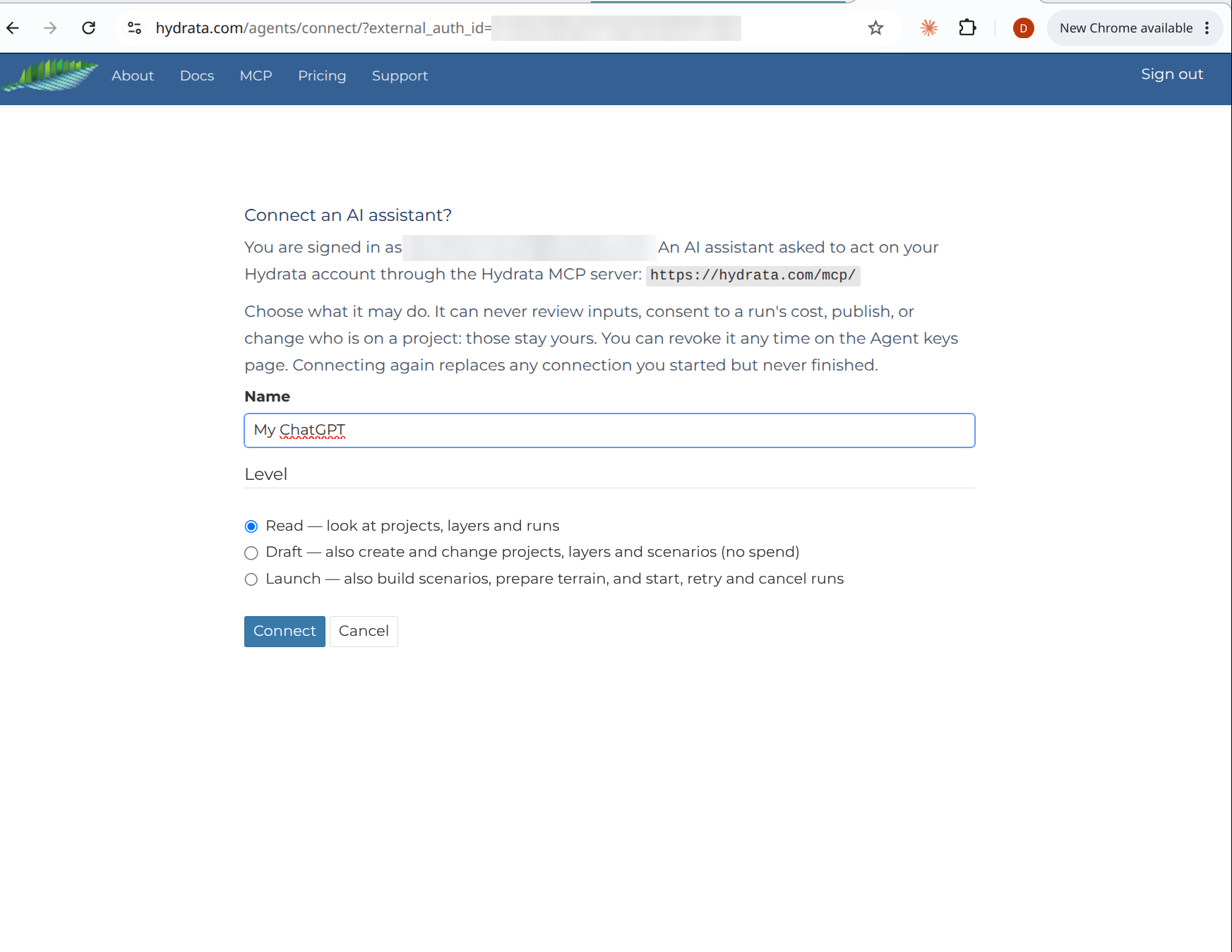
The page offers the same three access levels as an agent key: Read, Draft and Launch. It starts on Read. If you start connecting twice, only the latest attempt counts.
The assistant never sees your password.
Before you ask it to build anything, allow the Hydrata tools once so claude.ai does not stop to ask part-way through: see Before your first run.
Change a connection's level
A connection's level is fixed when you make it. To change it, revoke the connection, then connect again and choose the new level.
Make an agent key
Use a key for Claude Code, for a script, or for any client that can send an HTTP header.
- Open https://hydrata.com/agents/ while signed in. The page is called Agent keys. The map has no link to it, so keep the address handy.
- Under Create a key, enter a Name (up to 100 characters, such as "Claude Code on my laptop") and choose a Level. A new key starts on Draft.
- For a Launch key, set the Monthly spend cap (USD, launch keys). Leave it at 0 and every run that costs money waits for your consent. See run consent.
- Press Create key.
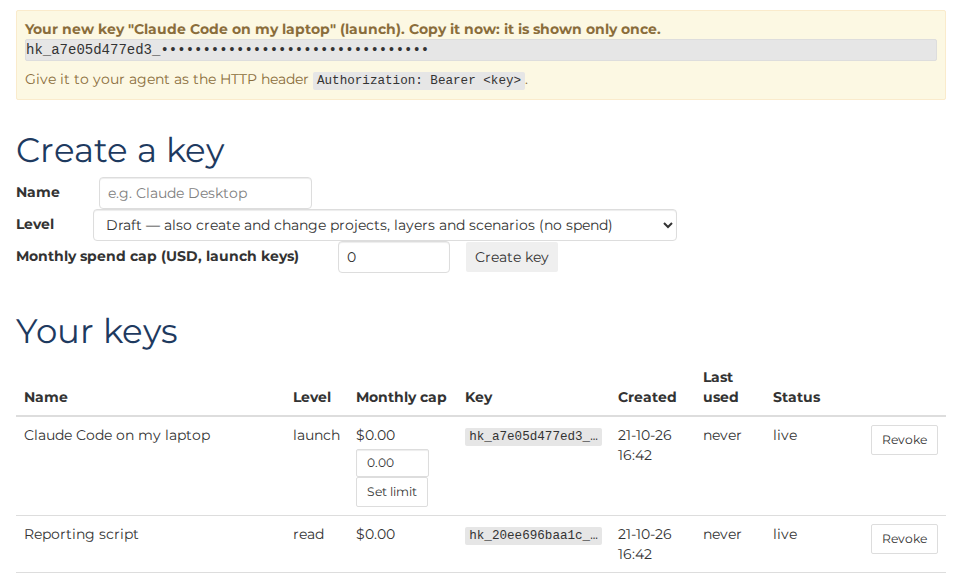
Hydrata shows the key once, in the form hk_ followed by a long string of characters. Copy it now: it is shown only once. If you lose it, revoke it and make another. Keys do not expire, so revoke any you no longer use.
The agent sends the key in an HTTP header: Authorization: Bearer <key>.
Claude Code
Add Hydrata to Claude Code with one command, replacing hk_YOUR_KEY with your key:
claude mcp add --transport http hydrata https://hydrata.com/mcp/ --header "Authorization: Bearer hk_YOUR_KEY"
The command stores the key in your own Claude Code settings. Do not add --scope project: that writes the key into the project's .mcp.json file, which is usually shared with the repository.
Keep keys private
Treat a key like a password. Do not paste it into a shared chat, a project file or a repository. If it leaks, revoke it.
Choose an access level
| Level | What the agent may do |
|---|---|
| Read | Look at your projects, layers, time series and runs |
| Draft | Also create and change projects, layers, time series and scenarios, and add or delete flood observations. Spends nothing |
| Launch | Also build scenarios, prepare terrain (finish an upload, fetch or convert a terrain), derive merged terrains and IDF tables, and start, retry and cancel runs. These use Hydrata's compute, but only starting a run is charged: building and preparing terrain are free (see Compute balance) |
Deriving a design storm stays at Draft. If an agent tries something above its level, Hydrata refuses with AGENT_LEVEL_INSUFFICIENT, naming the level it has and the level it needs.
Pick Read to let an agent look and report. Pick Launch if you want it to set up a model from your own terrain and build it: a Draft agent can start a terrain upload but cannot finish it. With the spend limit at $0, every run that costs money still waits for you. You can always make a new key or connection at a different level.
Set a monthly spend limit
A Launch key or connection can start a run on its own only while this key's spend this calendar month (UTC), plus the new run's quote, stays within its monthly limit (on the Agent keys page it is the Monthly spend cap when you create a key, and Monthly cap in the list). The limit starts at $0, so by default every run that costs money waits for your consent. A run that costs nothing never needs consent. A run Hydrata cannot price in advance always waits for your consent.
To change a limit, press Set limit beside the key or connection on the Agent keys page. It is shown for Launch keys and connections, including one-click connections after you have connected. The change is recorded in the activity log.
See your keys and connections
Your keys lists every key and connection with its Name, Level, Monthly cap, Key (the start of the key, or "Connected app"), Created, Last used and Status.
Revoke a key or a connection
- Open the Agent keys page while signed in. Your one-click connections are listed there too, shown as Connected app in the Key column.
- Press Revoke beside the one you want to stop. Its next request is refused with
AGENT_KEY_INVALID. - To stop every key and connection at once, press Revoke all.
Revoking does not cancel a run that has already started. Cancel it from the scenario in the map.
A revoked key stays in the list, marked as revoked. Revoking a connected app also forgets your consent, so you can connect the same app again later.
What agents cannot reach
- Your password does not work for agents. An agent needs an agent key or a connection; it cannot sign in with your Hydrata password.
- Keys work on the Hydrata API only. They do not work on the map server, so QGIS and other GIS tools still sign in with your password.
- Other Hydrata sites. On Hydrata's other sites there is no Agent keys page, and a key is refused with
AGENT_KEYS_UNAVAILABLE.
A revoked or unrecognised key or connection is refused with AGENT_KEY_INVALID.
Next
Try a first request, for example: "Create a Hydrata project called Test Creek in EPSG:28356 and give me the link." Open the link it hands back.
Then read Working with an agent to see what happens once it is connected.