Reviewing Agent Inputs
When an AI assistant writes inputs into a Hydrata project, nothing it wrote is built or run until a person has looked at it. That person is you, or a colleague with the right role. This page explains what you see in the browser and how to clear it.
If you have never connected an assistant, you will only meet this page when a colleague's agent has touched a project you work in. See AI Agents for the other side of the story.
Why Build is off
Open a project where an agent wrote an input a scenario uses and the scenario header says:
Build is off: 2 inputs written by an agent are not reviewed. Review them in the Review panel.
While that message stands, Build, Run, Retry and Build and Run are all off. A mesh preview is not a build, so it still works.
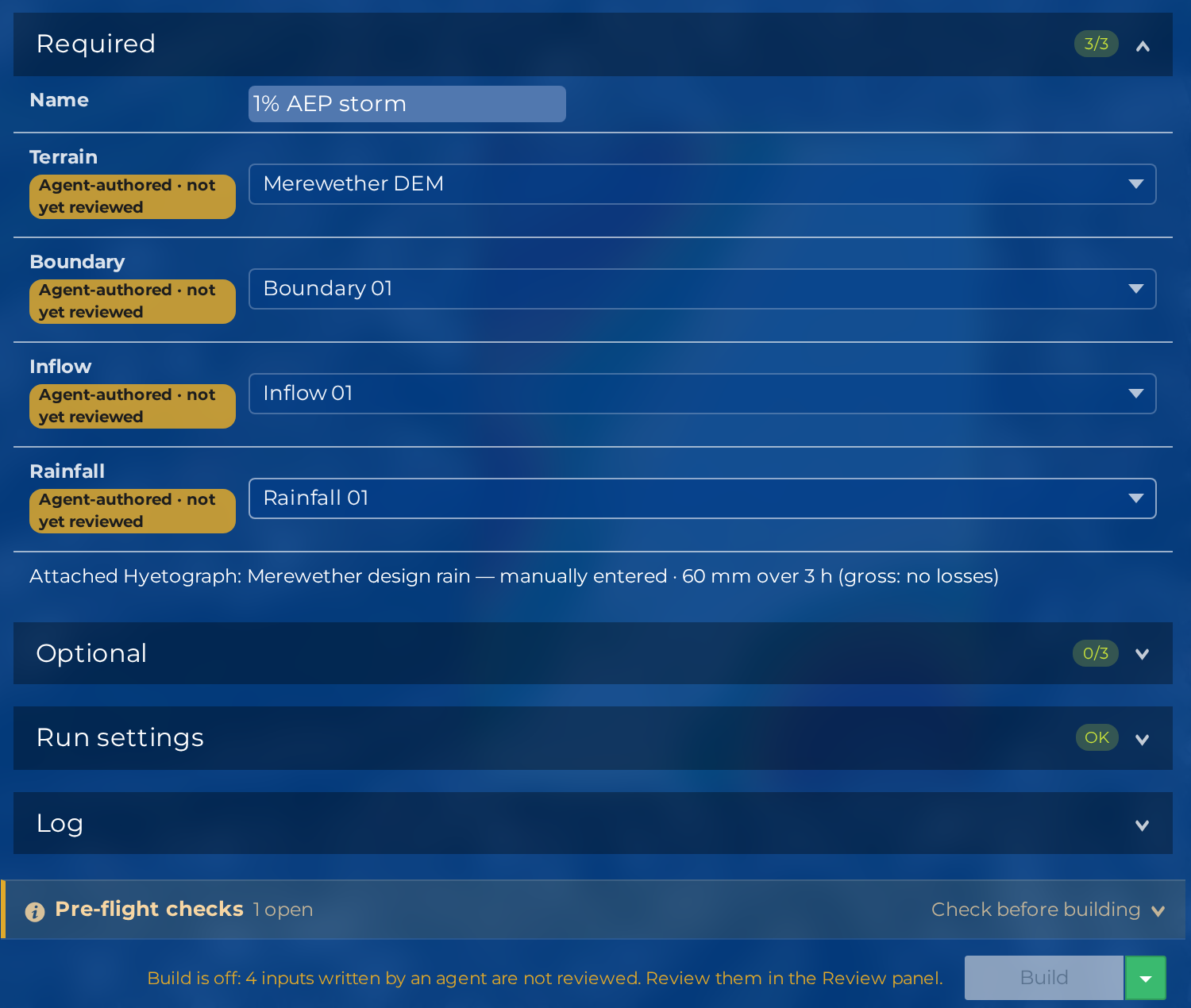
The same marker, Agent-authored · not yet reviewed, sits beside the matching field in the scenario settings. See Selecting Inputs.
Who sees the message
Only an Editor or above sees the message and the Review button. A Contributor cannot review agent inputs, and cannot Build or Retry (both need Editor or above). A Contributor can start a Run on a scenario an Editor has built, but it is refused with UNREVIEWED_INPUTS until an Editor reviews the agent's inputs.
What counts as an agent input
Review works on whole input layers, never on a single feature. The layer kinds are terrain, boundary, inflow, rainfall, friction, building, mesh region, culvert and breakline, together with the time series those layers use.
An input needs review when any of its current content was written by an agent. That includes two cases that are easy to miss:
- A layer that a person drew, but whose features use a time series an agent wrote. The values that reach the engine are the agent's.
- A layer an agent wrote and you then edited. Editing the layer in the map counts as your review of the version you saved (see Your own edit counts as a review), with one exception for time series.
The scenario's own settings, such as its duration and resolution, are not reviewed, even when an agent chose them, and they never hold up Build. Check them in the scenario settings. If a setting changes after a build, the built package no longer matches: the scenario reads as not built and Run asks you to build again.
Open the Review panel
Select Review (tooltip "Review inputs") in the left toolbar. The button appears for Editors and above, once the project has a projection. A badge on it counts the unreviewed agent inputs in the whole project, across every scenario, and disappears at zero. It does not depend on which scenario is selected.
The panel is headed Review what the agent wrote: "An agent wrote these inputs. Look at each one, then review them. Nothing is built or run until you do."
The panel lists each scenario that has agent inputs to review (or reviewed), with its unreviewed inputs and its reviewed inputs under it. A layer that several scenarios use is listed under the first scenario that uses it, and the Scenarios list marks every scenario that uses it. Review it once and it is reviewed for all of them.
Each row gives:
- a one-line summary of the input;
- the badge Agent-authored · not yet reviewed, or Changed since you reviewed it if it has been reviewed before and has changed since;
- who wrote it, for example "Written by agent Claude Desktop (launch access)";
- an Open in Inputs button and a Show on map switch (it reads Not on the map when the layer is not in the map).
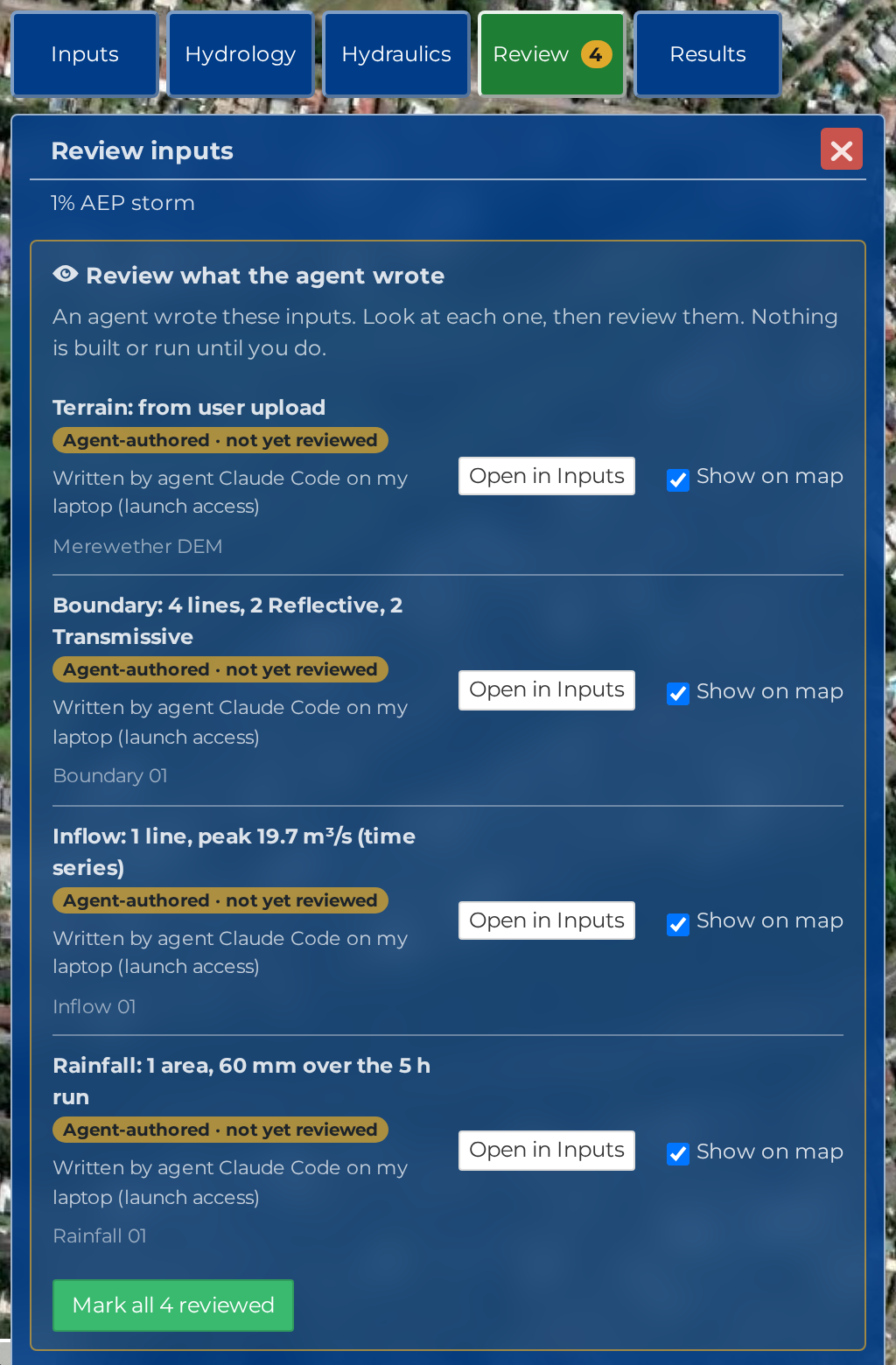
Look at each input, then review it
- Select Open in Inputs on a row. The Inputs panel opens at that category, the layer is highlighted and the map zooms to it. The Review panel shrinks to a bar docked at the foot of the Inputs panel, so you do not lose your place. The bar reads "Reviewing kind (1 of 3)".
- Look at the layer. The bar names the next step, Edit features or Open the time series. Hydrata never opens the editor for you.
- Select Mark this input reviewed on the bar, then Back to review for the next one.
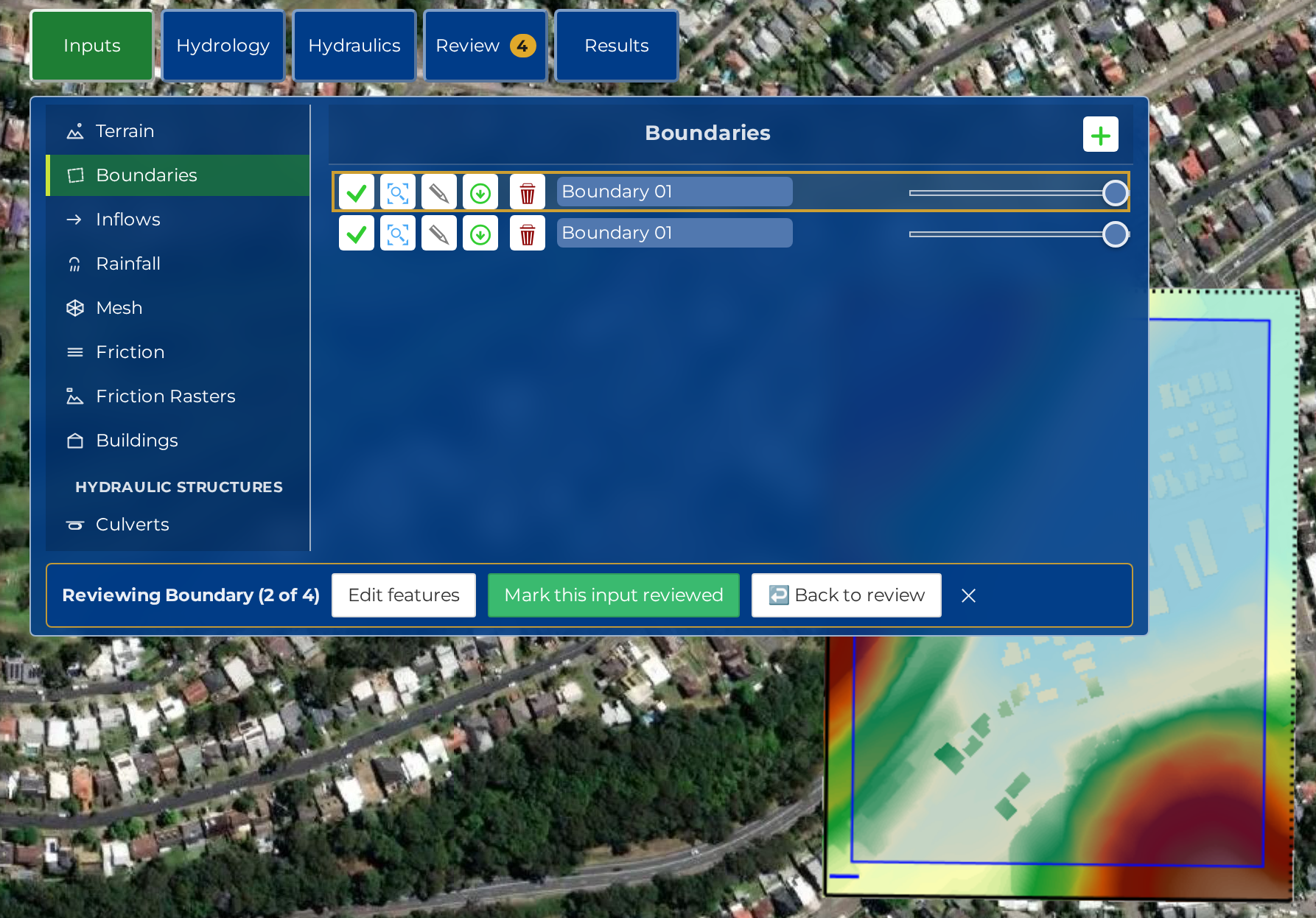
You can also review everything from the list. Each scenario group has its own button, which reads Mark all N reviewed (or Mark this input reviewed when only one is left). It marks every row listed in that group. Use it only after you have looked at each one.
If an input changes while you are looking, Hydrata tells you "An input changed while you were looking" and refreshes the list. Look at the new version, then review again. If the review does not save you are told "Your review did not go through. Try again."
Once everything is reviewed, the panel says "All agent inputs reviewed" with a count and a Dismiss button. A Reviewed list below keeps the record: who reviewed each input, and when.
Your own edit counts as a review
If you edit an agent-written layer in the map and save, Hydrata counts that as your review of the layer version you saved. You looked at the features closely enough to change them, so you do not have to review the same layer again in the panel.
There is one exception. A layer that is unreviewed only because its features use a time series an agent wrote stays unreviewed when you edit the layer, because the agent's values still reach the engine. Review it in the panel (open the time series, look at it, then mark it reviewed).
Two limits apply. A save made within 30 seconds of the agent's write does not count, so a save that races the agent's own change never passes as a review. And only an edit made in the Hydrata map counts: a change made in QGIS or another desktop GIS over the WFS-T connection is not seen as a review, so review that layer in the panel.
When the review re-opens
A review belongs to the exact content you looked at. Any change to that content re-opens it, a single moved vertex included. If an agent writes to the layer again after your review, whether you reviewed it in the panel or by editing it in the map, the review re-opens. Renaming a layer or changing its description does not.
If a scenario was built, and an agent-written input then changed, the built package is no longer the one you reviewed. Pressing Run is refused with a message to build the scenario again. Build it, then run it. Your review of the changed input comes first.
Who can review
- Editor and above, signed in, in the browser. Nobody else sees the Review button.
- An agent can never review an input, whatever access level its key or connection has.
- A script using a password or token cannot review either.
Reviewing is recorded. Each review adds an "Input reviewed" line to the project's agent activity.
For API users
The review is project-wide in the API too. GET /api/v2/anuga/projects/<id>/input-review/ returns the whole project's review: the unreviewed count and, for each scenario, its unreviewed and reviewed inputs (a layer shared by scenarios is listed once, with the scenarios that use it). POST to the same URL reviews inputs by layer, not by scenario. Both need an Editor or above, and the POST works only from a signed-in browser session, never with an agent key.
Note
Reviewing an input is not a chartered engineer's verification of the model. It records that a person looked at what the agent wrote before anything was built or charged.
Related pages
- Selecting Inputs for the marker beside each field
- Compute balance for how an agent's run is consented to
- Working with an agent for what the agent does before and after your review
- Troubleshooting if Build stays off